A New Era of 3D Art with Logitech Muse and Apple Vision Pro
For years, I’ve explored various mediums to express my creativity. From crayons and pencils as a child, to pens, charcoal, and paint in college, my journey has always been about finding the right tools to bring my ideas to life. In the late 1980s, I transitioned to digital drawing using a mouse, later adopting a Wacom tablet and stylus. Over the past decade, I’ve relied on the iPad and Apple Pencil for most of my work.
When virtual reality (VR) emerged, I experimented with several 3D drawing apps, but struggled with the interfaces and the difficulty of using controllers to place lines in three-dimensional space. Even with the Apple Vision Pro, my experience was limited—often relying on pinching my thumb and index finger to indicate where my virtual drawing tool would be. It wasn’t a great experience.
Now, the arrival of the Logitech Muse, a Bluetooth-enabled drawing accessory designed specifically for the Apple Vision Pro, is changing that. The device, which arrived months after its initial announcement, is tailored for the Vision Pro and compatible with a range of native visionOS apps.
Design and Setup
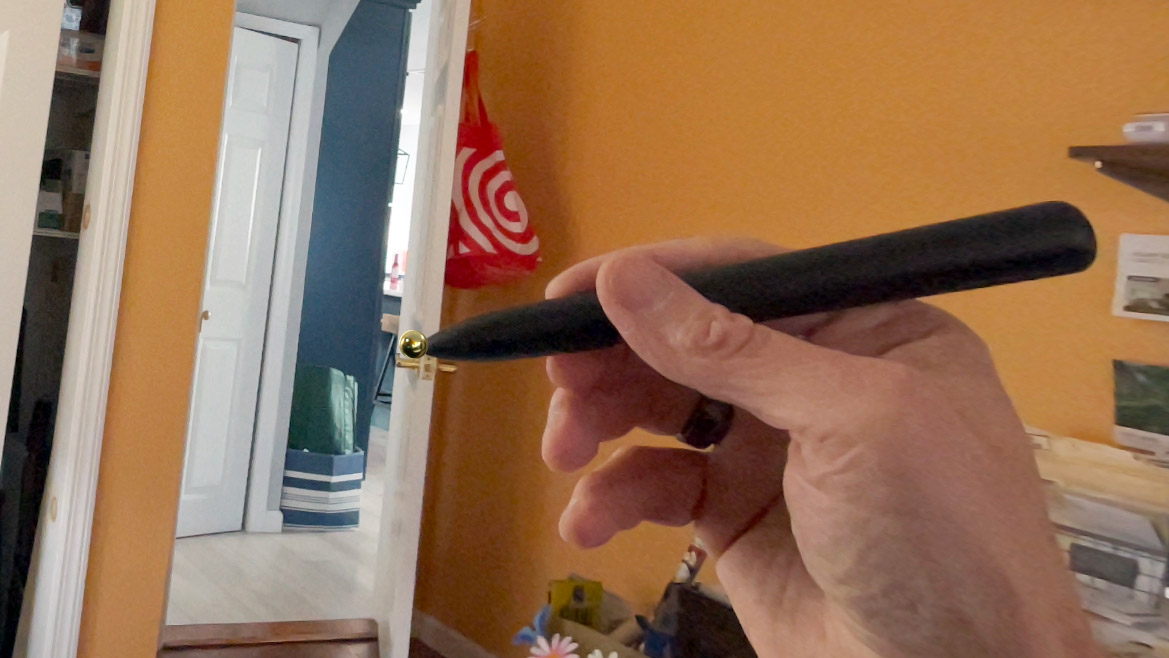
The Logitech Muse is a compact, cigar-shaped device that feels similar in length to a standard Apple Pencil but is significantly thicker. Despite its size, it offers ergonomic comfort due to its lightweight build and tapered cylindrical shape. On one side, there are two buttons, while a larger button sits on the back end. I only used the back button in combination with one of the others for pairing with my Vision Pro.
Setting up the Muse was straightforward. I charged it via the USB-C port, then held down the two side buttons until it powered on. Within the Vision Pro (M5 edition), I navigated to Bluetooth settings, found the Muse in the list, and paired it with the headset.
Testing the Experience
Logitech recommended a few apps for testing, including Spatial Analogue, a design app that supports collaborative projects. However, I didn’t find much inspiration in it. I tried Crayon next, but it suggested putting the Muse down for better control. Eventually, I turned to AirDraw, a powerful 3D art tool that seemed perfectly suited for the Muse.
Drawing in 3D Space
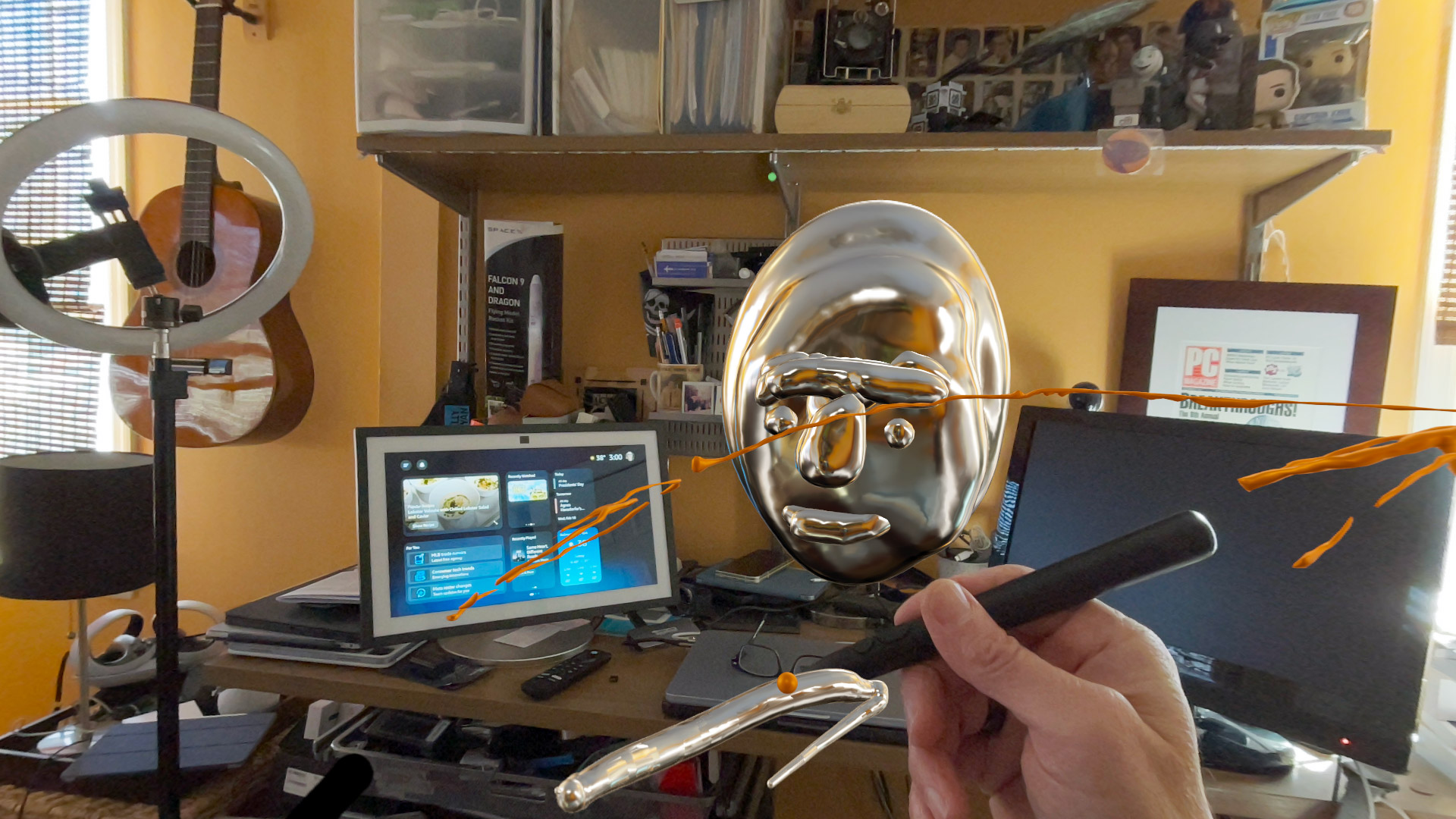
In AirDraw, the experience is largely defined by your menu choices. You can create smooth, continuous lines that float in space or ones that react to gravity and drop to the floor when you stop drawing. To start a line, you hold one of the two side buttons. The button closer to the tip creates thinner lines, while the larger button produces a blob-like effect. AirDraw also allows you to adjust line thickness, and in my experience, this was influenced by the speed of my stroke.
I appreciated how the gold ink appeared to emanate directly from the Muse’s tip. I attempted to draw quickly to keep my lines thin, but it was challenging. Many of the lines, colors, and line skins featured highly reflective surfaces. When looking closely, you could see that the lines reflected the environment around you, thanks to the Vision Pro’s cameras capturing real-world details.
Creating a 3D Head
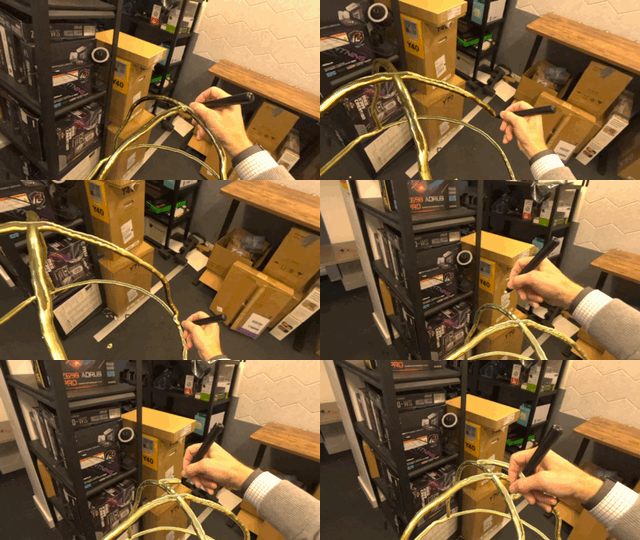
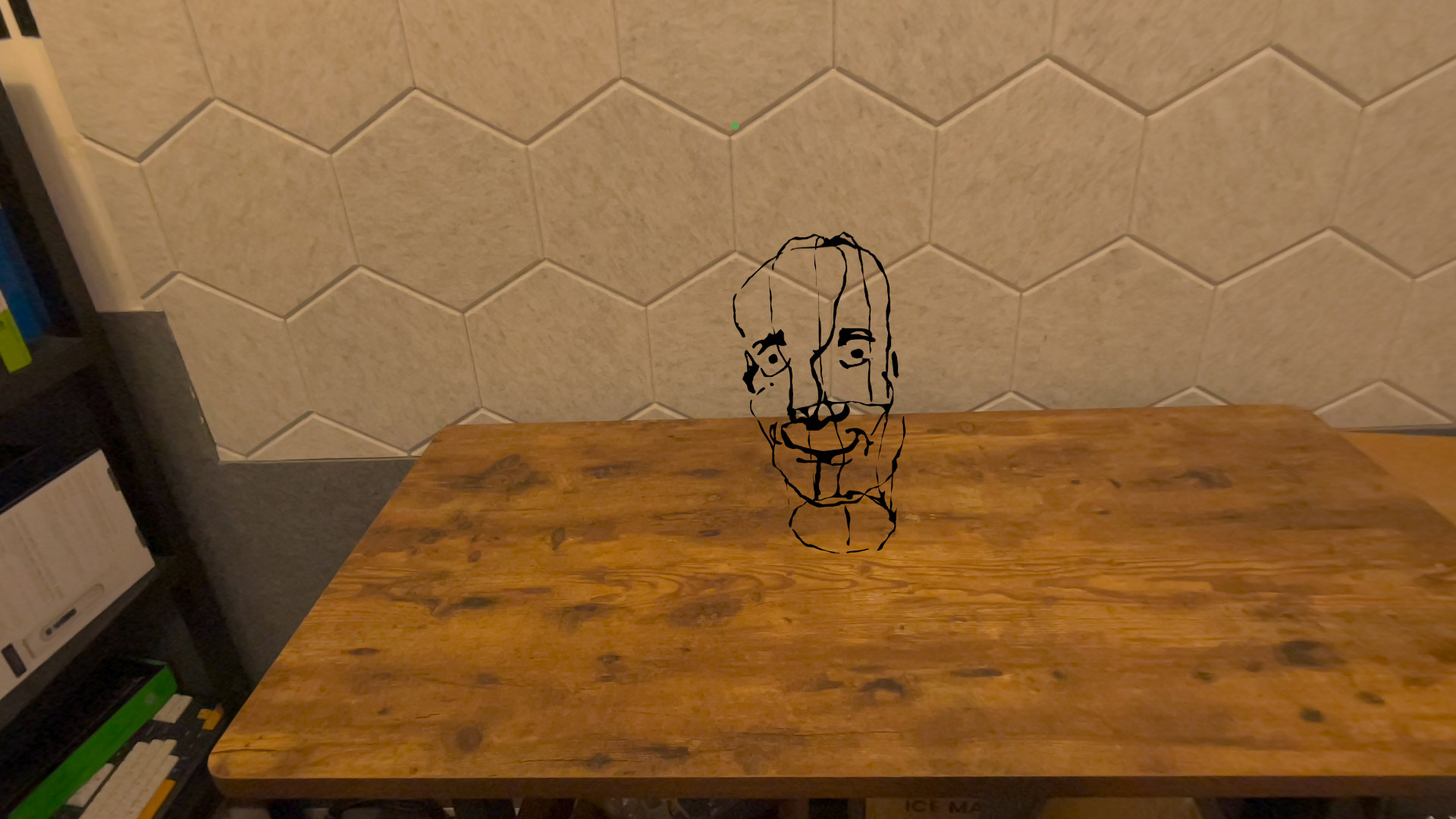
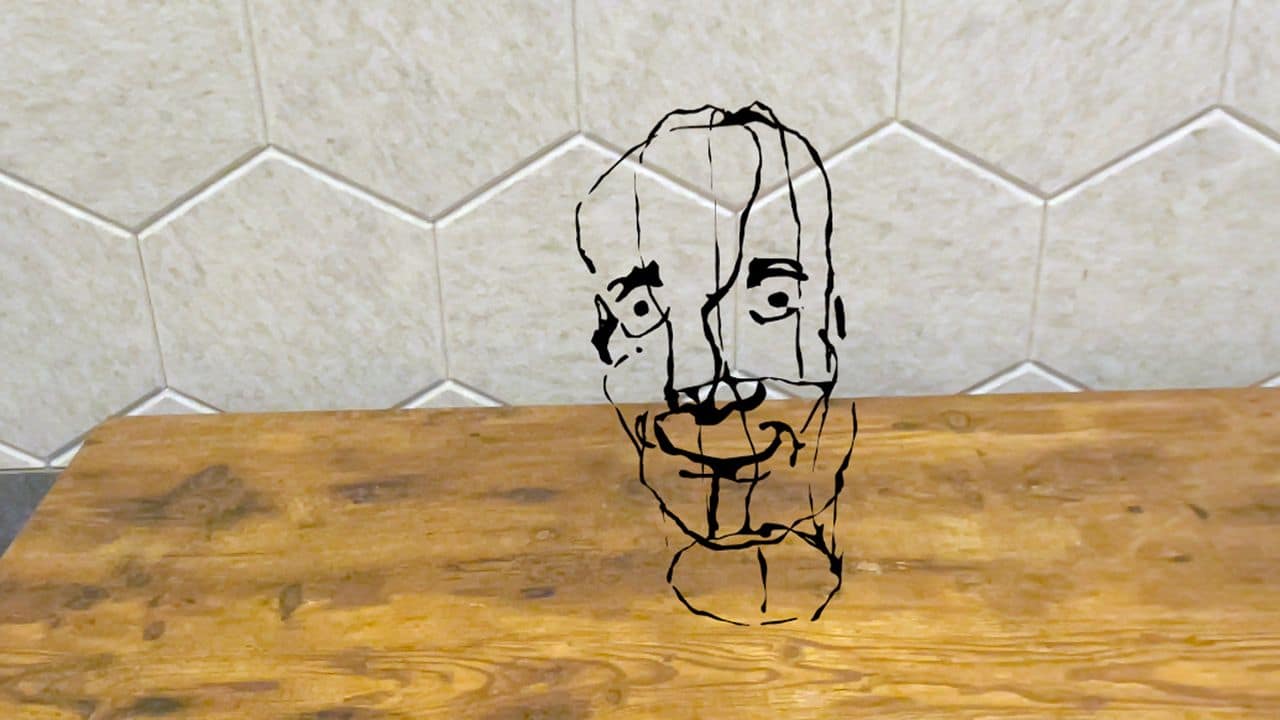
Drawing a human head in 3D proved to be a challenge. I switched to non-reflective black and chose the thinnest line thickness. To help orient myself, I drew a circle on a tabletop to serve as the base of the head. I then stepped back and viewed the lines from different angles, allowing me to see the wireframe more clearly.
Next, I added vertical lines from the base to the neck and then to the back, sides, and front of the head. I moved to one side and drew an ear, then circled 180 degrees to add another on the opposite side. While the result wasn’t perfect, I felt excited as parts of the drawing began to come together. I realized that with the right approach, I could create 3D VR art, and I credit the Logitech Muse for making this possible.
Final Thoughts
The Logitech Muse isn’t enough to justify the high cost of the Vision Pro for most consumers. However, for digital artists looking to push boundaries and create unique 3D artwork, it might be worth exploring. If you give it a try, I suspect you won’t want to stop.